If the sub-supplier cannot view the project in the portal, confirm the following:
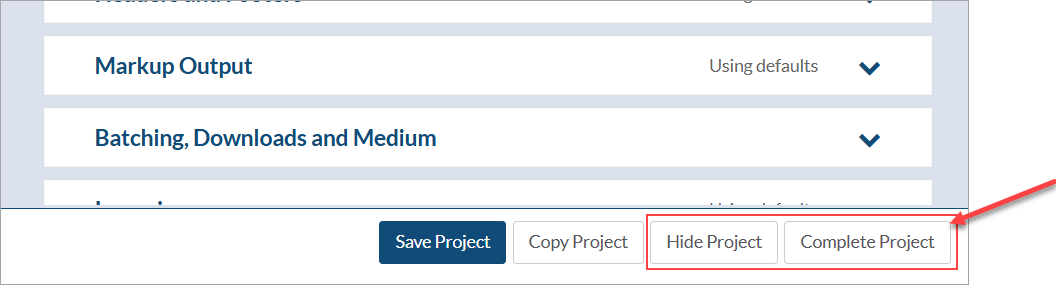
- Is the project marked hidden OR complete?
- If the project is hidden on considered completed, the portal will not appear in the supplier's project list.
- To confirm that the project is not hidden and active, navigate to Project Menu > Set Up > Project Configuration > Main and review the "Project Action" buttons (bottom left).
- Is the supplier portal enabled?
- If the supplier portal has not been enabled on the project, the portal will not appear in the supplier's project list.
- To confirm that the portal has been enabled on the project, navigate to Project Menu > Set Up > Project Configuration > Advanced and confirm that the "Allow sub-supplier access" option is set to "On." Once enabled, a list of contacts with access to this project through the portal will be displayed.

- Is the supplier added to the portal?
- Individual(s) looking to access the supplier portal will only have access once an account has been created for them.
- Follow the instructions in this article to add a supplier account (if one does not exist already): Sub-Supplier Portal (Admin).
- Does the contact have the correct company associated with them?
- Individual(s) looking to access the supplier portal will only have access to the projects associated with the supplier selected on their account.
- To confirm that the account is associated with the correct supplier, navigate to System Menu > Users > Manage Sub-Supplier Accounts > Edit (Pencil Icon) > System access).

- Does at least one card have the supplier associated with it?
- If the supplier is not associated with any cards on the project (either via the equipment list OR sub-supplier override), the portal will not appear in the supplier's project list.
- To confirm that the supplier is associated with at least one card, navigate to Project Menu > Cards > Card List, open the "Date and Non-Column Filters" options, navigate to the "Sub-Supplier" tab, and filter by the applicable supplier.

- If no cards appear for the supplier in question, ensure that the sub-supplier defined for each equipment unit has been configured correctly OR override the auto-defined value from the applicable cards (see article: Sub-Supplier List and the Sub-Supplier Override).


