Auto-generated cards have their tagged equipment (and major tag(s), if applicable) automatically applied based on the level that is set on the doc code.
Example: Doc code level is set to "Item/Model." As such, each card will include the tagged equipment units that correspond to the item/model value.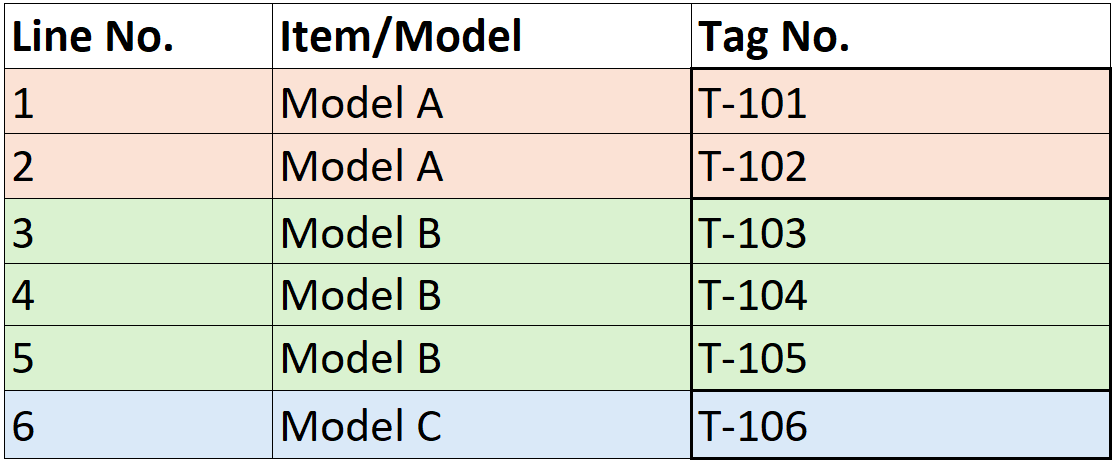
If the documentation received includes more/less tags than are included on the auto-generated card(s), there are three different options to adjust the card(s) depending on the situation:
Option 1: Split card(s)
If a card includes multiple equipment units but you receive documentation with these tags separated, using the split function allows you to separate the auto-generated card into the appropriate number of cards (allowing the units to be managed separately). The split cards will still be auto-linked to the equipment list, meaning any updates to the equipment list will be auto-applied.
See this article for more information: Split a card (and split equipment list)
Example: Doc code level is set to "Item/Model" and you receive two pieces of documentation for Model A (one for each tag - T-101, T-102).
Option 2: Merge cards
If there are multiple cards with different equipment units but you receive documentation with these tags combined, using the merge function allows you to combine multiple auto-generated cards together (allowing the units to be managed together). The merged card will still be auto-linked to the equipment list, meaning any updates to the equipment units will be auto-applied.
See this article for more information: Merge Cards
Example: Doc code level is set to "Tag No." and you receive one piece of documentation for T-101 and T-102 combined (both tags for Model A).
Option 3: Manual adjustment
If neither splitting or merging cards will result in the card configuration you require, there is the option to manually adjust the equipment included on a card. Manually adjusting the equipment will result in the card becoming manual, meaning that any updates to the equipment list will not be auto-applied.
Example: Doc code level is set to "Item/Model" and you have manually adjusted the equipment on the "Model A" card. If a new equipment unit is added to the equipment list for this item/model value, the equipment included on the "Model A" card will not auto-update (and equipment will need to be manually adjusted on the card).
To manually adjust the equipment units included on a card, follow the steps below:
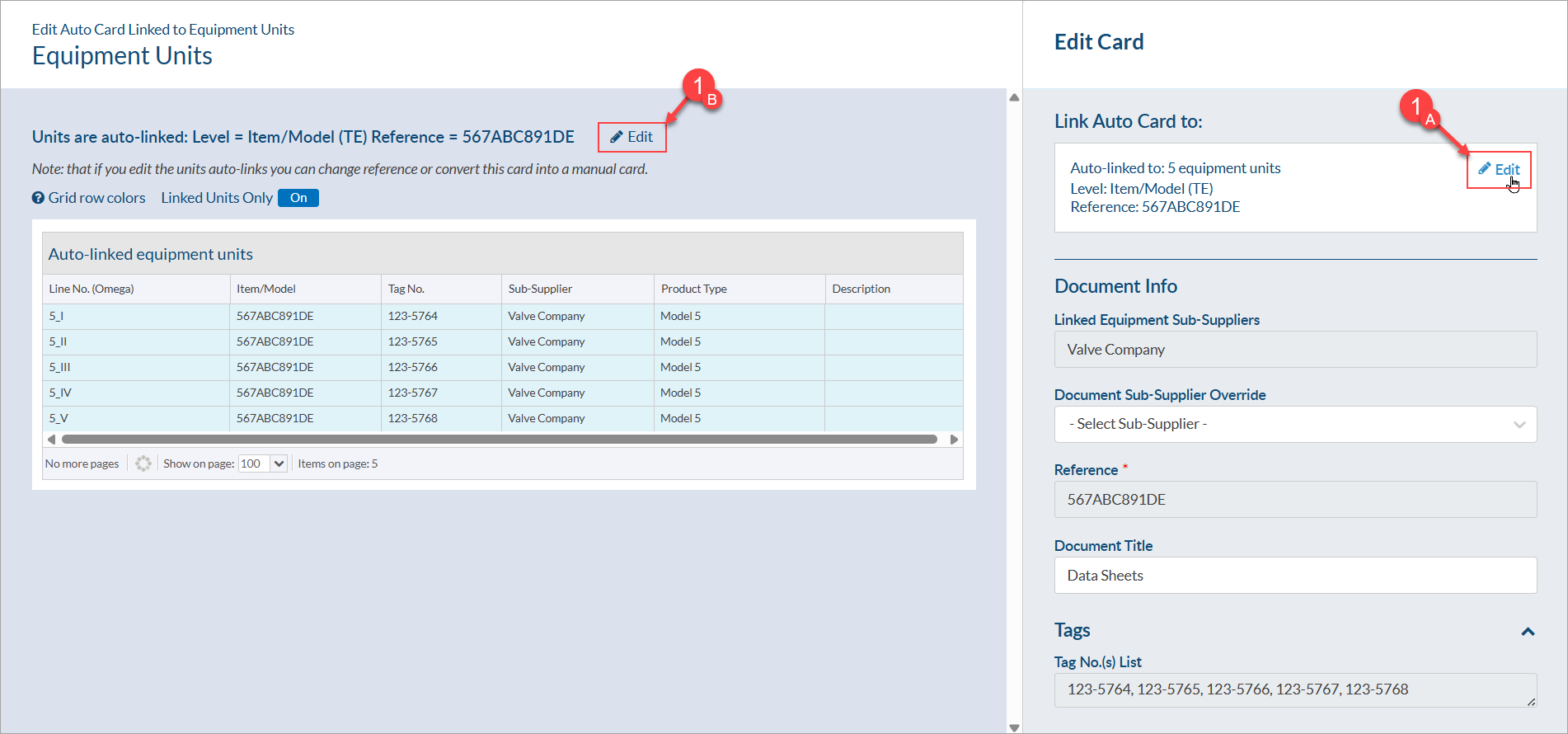
- Open the card edit form and from the "Link Auto Cards to"" section, click the "Edit" button. With the equipment units form open on the left, click the "Edit" button.
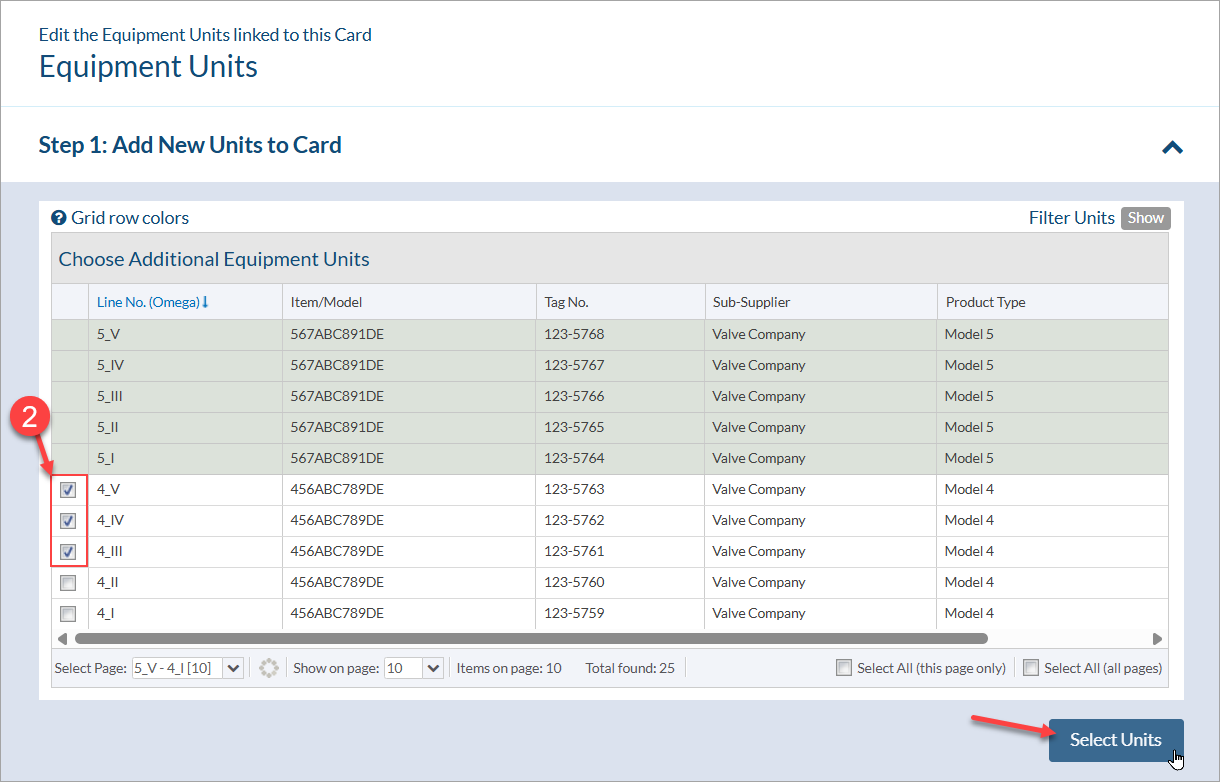
- Choose the additional equipment units to include on the card (if applicable) and click "Select Units" to add them.
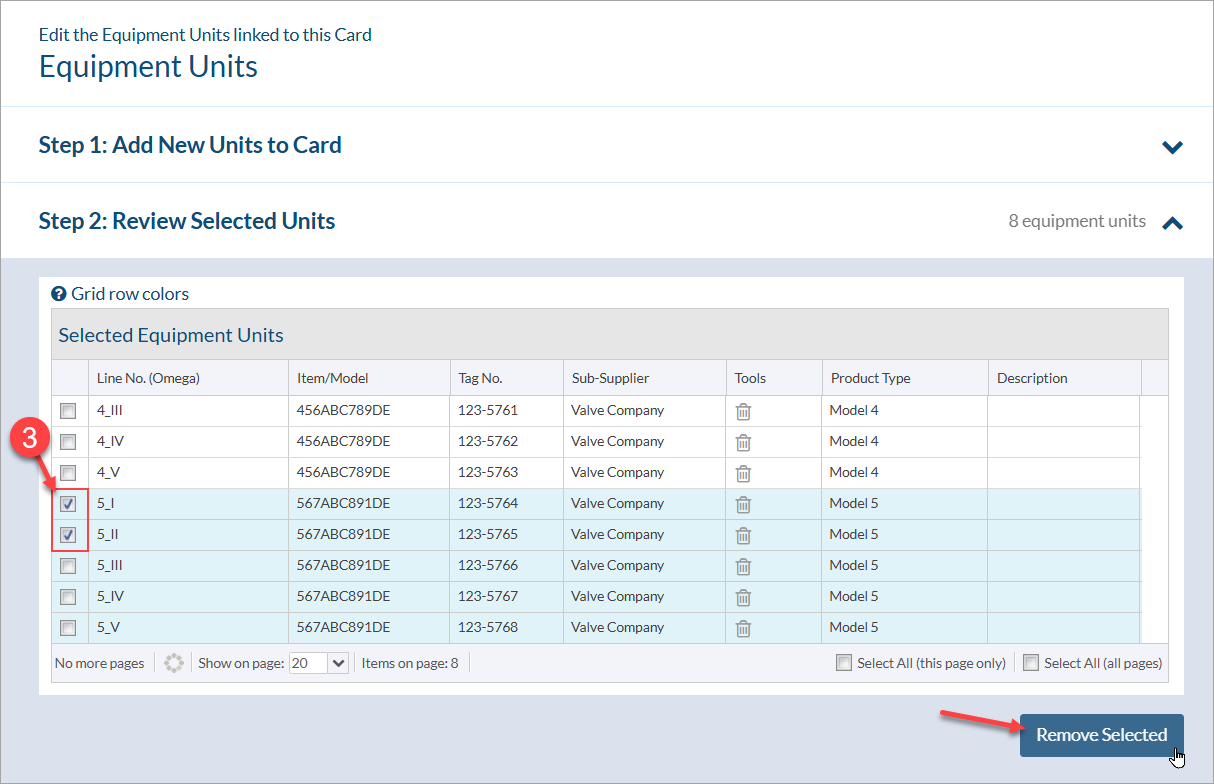
- Choose the equipment units to remove from the card (if applicable) and click "Remove Selected" to remove them.
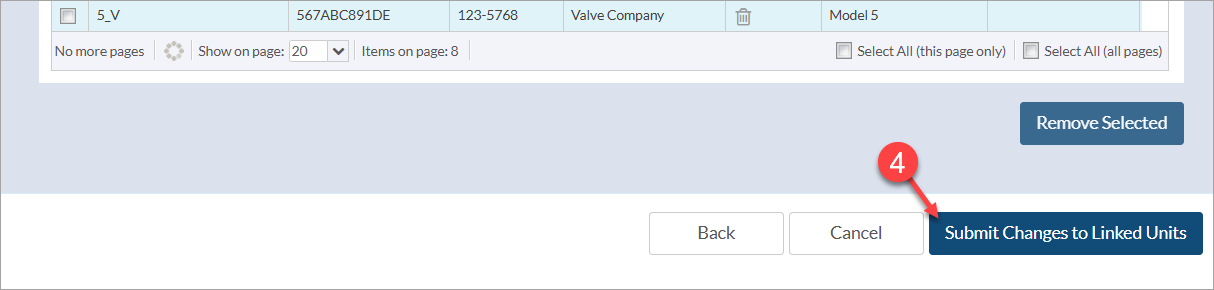
- Once the selected units match your requirements, click the button to "Submit Changes to Linked Units." Once clicked, a pop-up will appear notifying you that the card will be converted to a manual card - click "Yes" to proceed.
Note: If the project only includes major tags (no tagged equipment units), the option to manually adjust the equipment is still available. If an auto-generated card is changed to a manual card, you can adjust the linked major tag(s) as needed.
