Conditional formatting can be used to highlight specific values once generated in DocBoss. Conditional formatting can be used both when referencing specific cells, or referencing a different cells / in arrays.
Referencing a specific cell
If highlighting a cell outside of an array, this can be done the typical way (i.e., referencing the cell directly).

Referencing a different cell OR in an array
To reference a different cell OR to use conditional formatting in an array, the "INDIRECT" formula can be used.
As an example, let's say the "Status" column in an SDI should be highlighted in orange if the card has received a complete status (i.e., "1") from the customer. To do this, follow the steps below:
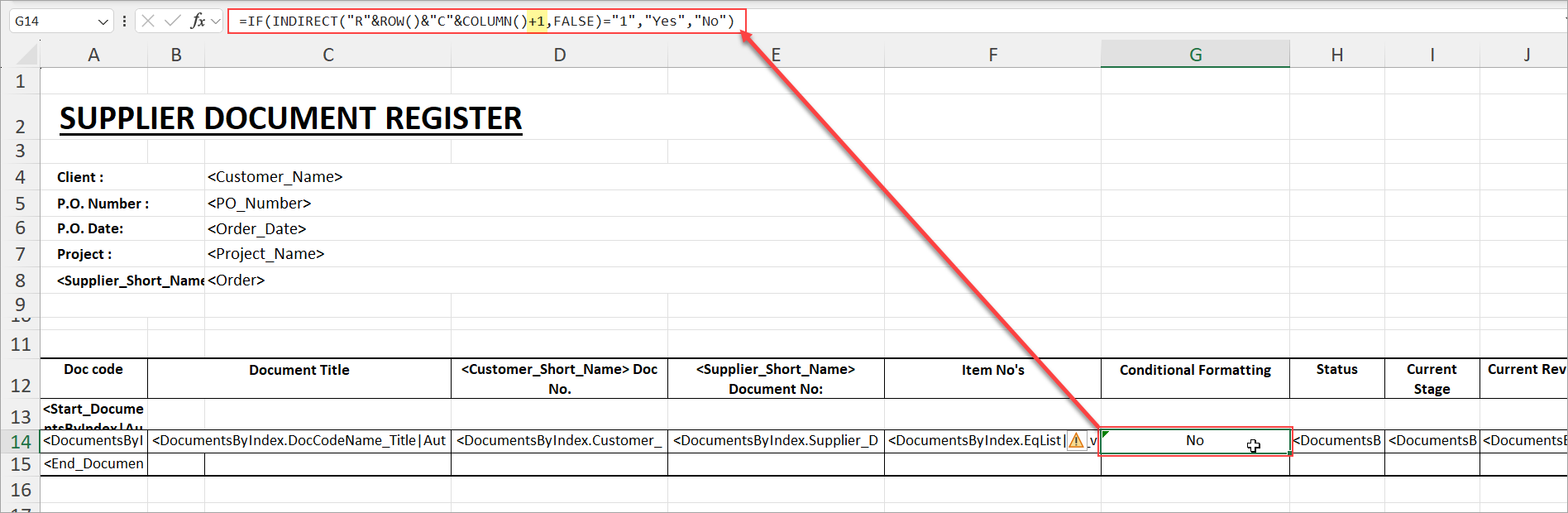
- Add a new column to the left of the "Status" column and enter an INDIRECT formula that looks at the cell ONE column to the right (i.e., +1) to determine whether or not the value is "1". If the cell equals "1", it will populate "Yes," and if it has any other value, it will populate "No."
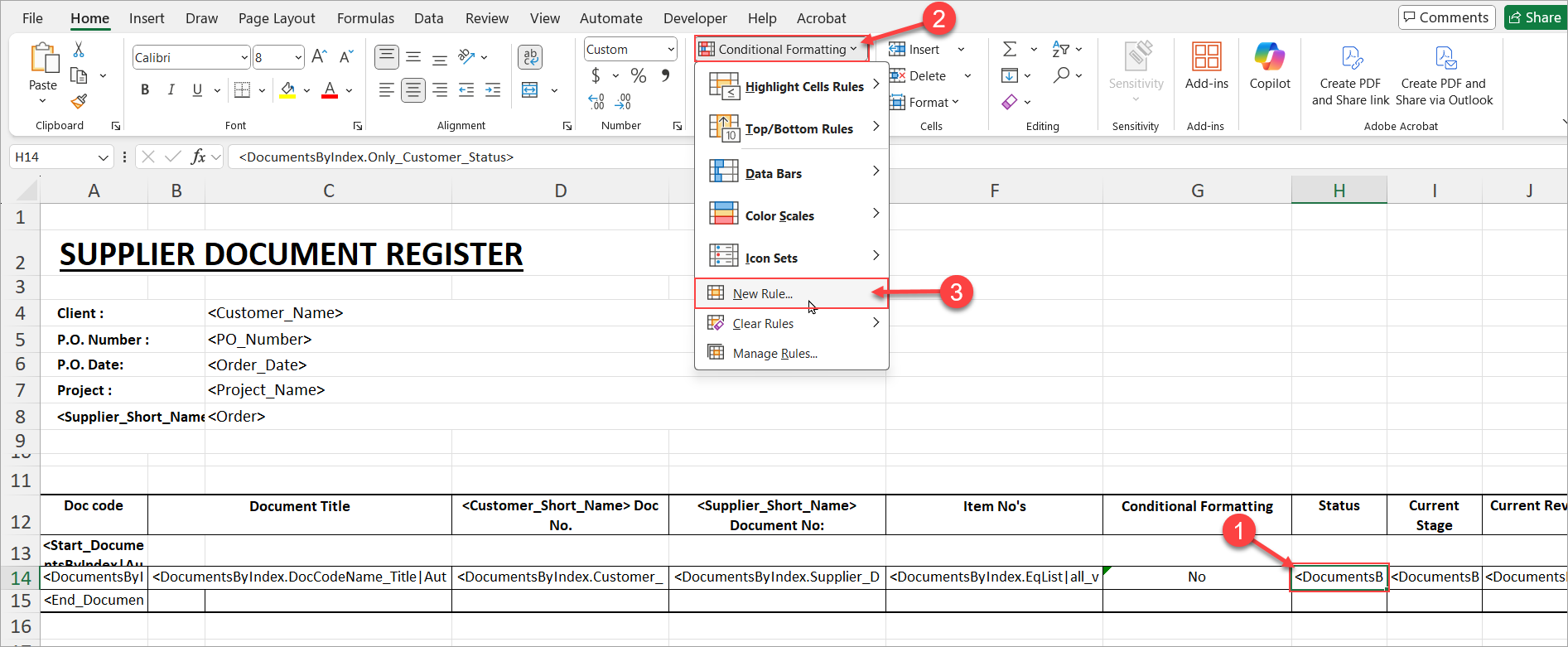
- Select the "Status" column, open the "Conditional Formatting" options, and click to create a new rule.
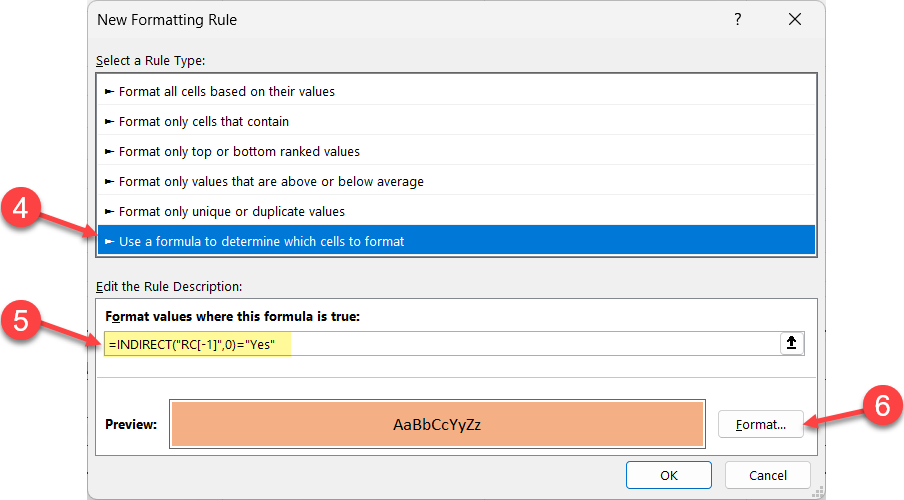
- Choose the option to set a formula for conditional formatting and enter an INDIRECT formula that looks at the cell ONE column to the left (i.e., -1) to determine whether or not it should receive conditional formatting (i.e., if the value in the "Conditional Formatting" column is "Yes"). Then, set the desired formatting using the "Format..." selector (e.g., setting the cell to fill in orange).