The Prices & Estimates feature is designed to provide a detailed pricing estimate for the documentation fees related to a project.
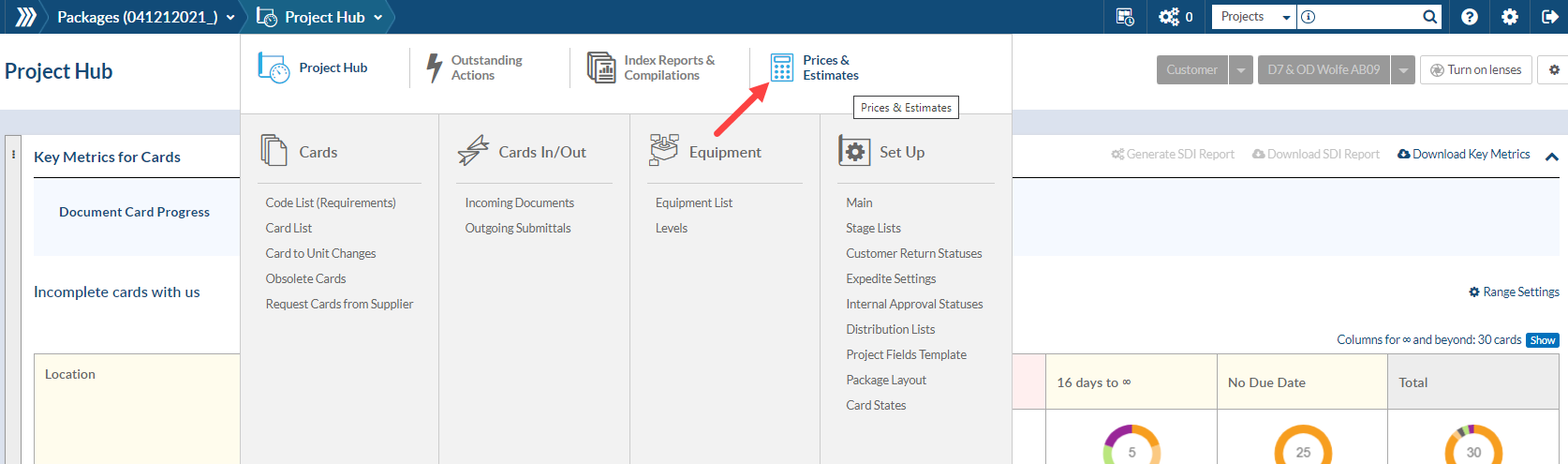
Once the project has been set up with the required information (Doc Codes with Levels and Equipment) and the cards have been created, navigate to the Prices & Estimates screen from the project menu to begin creating an estimate.
Configuring an estimate
On the Prices & Estimates screen, there are a number of price segments (lines) to choose from in the Actual Prices grid.

To add a segment to the estimate, (1) select it from the Actual Prices grid and (2) select Save.
Further information may need to be filled out on the Code List or Edit Compilations screen, depending on the segments being used:
- # of pages to be printed: Managed from the code list in the following columns:
- Est. Pages: The estimated number of pages per document. The estimate can be updated for each code in order to generate a more accurate quote.
- Printed for Review / Printed Final: The number of printed copies per document. Add values for each doc code to have the number of printed copies reflected in the quote.
- $ for CD creation: Managed from the Edit Compilations screen - Check the "CD required" box and enter the number of CD's. Quantity is automatically calculated from this value, but can be adjusted from the Actual Prices grid.
- $ for compilation generation (each book) 0-200 / 201-500 / 501 and over pgs.: Managed based on doc codes identified as compilations. If the compilation has been created, DocBoss will use the actual page numbers to set the quantity for the applicable line in the Actual Prices grid.
- $ for compilation index generation: Managed based on doc codes identified as compilation TOC's. Quantity is automatically calculated, but can be adjusted from the Actual Prices grid.
- $ for document index generation & $ for document index with submission history generation: Managed based on doc codes identified as SDI Reports. Quantity is automatically calculated, but can be adjusted from the Actual Prices grid.
- $ per CD: Managed from the Actual Prices grid. Quantity is automatically calculated (based on CD Copy compilation settings), but can be adjusted from the Actual Prices grid.
- $ per doc (mgmt fee): Managed from the Actual Prices grid. Quantity is automatically calculated (based on the total number of cards on the project), but can be adjusted from the Actual Prices grid.
- $ per doc (technical review): Managed based on number of doc codes with "Tech Rev" checked (per code). Quantity is automatically calculated (based on the total number of cards for the select doc code(s)), but can be adjusted from the Actual Prices grid.
- Sub-Supplier Document Charges: Managed using the "Charges" column on the code list. Intended to pass sub-supplier document charges onto the customer.
- To add a charge, select a pre-existing charge OR add a new one. If adding a new charge, select the appropriate sub-supplier (where the fee is coming from), select/add the fee type (i.e., Item/model value), and fill in the purchase values/markups.
- If there are different sub-suppliers associated with cards generated by the doc code, the charge will only apply to cards associated with the sub-supplier selected for the charge.
- Note: This option is only available for codes with the type "Generated (Sub-Supplier)". If the doc code type is changed to anything else, the charges field will clear.
- To add a charge, select a pre-existing charge OR add a new one. If adding a new charge, select the appropriate sub-supplier (where the fee is coming from), select/add the fee type (i.e., Item/model value), and fill in the purchase values/markups.

If the information in the project has changed since a price segment was added to the estimate, its row will be highlighted in red. To update the estimate to match the current information in the project, check the box in the Apply column of the Actual Prices grid, and then select Save.
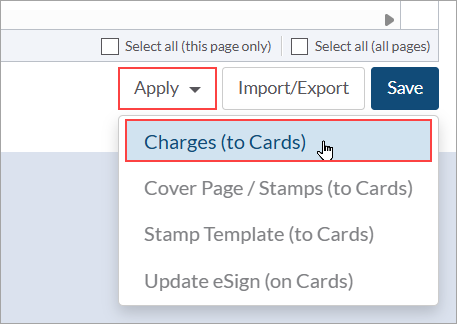
If information on the code list has been updated, also make sure to apply the updates to the cards by selecting the impacted doc code(s), expanding the "Apply" drop-down, and choosing "Charge (to Cards)"
Editing prices
To edit the prices that will appear on the estimate, click within the Actual Prices grid to change the values, then select Save.
To change the default prices (either globally or per customer), or add additional pricing segments, see here.
Clarifications and exceptions
This is a text field below the Actual Prices grid. Add any additional data about the document requirements to have this information displayed on the generated quote.
Outputs
There are three formats available for exporting pricing and estimate data. These options are available from the bottom left of the pricing grid.
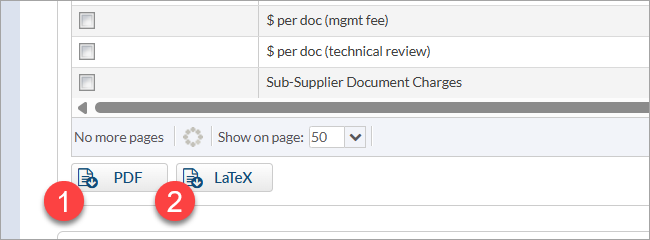
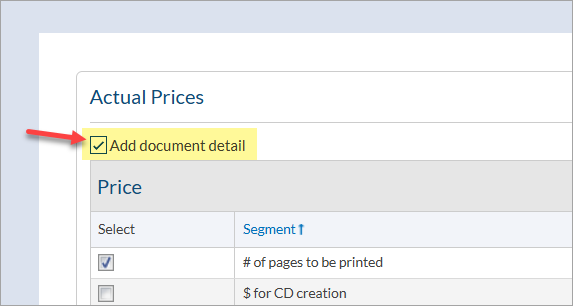
- PDF - This is the standard output. By default it includes a detailed breakdown of the doc codes. To remove this, uncheck the "Add document detail" option (located above the pricing grid).
- LaTeX - This format can be used for integration with 3rd party estimate/quote systems
Note: In order to produce an estimate, an Estimation template must be selected in the project. From the "Main" tab of the Project Configuration page, select the template to be used under the "Prices and Estimates" section.

The default estimate template will include the following sections:
(1) summary of all documentation being provided, including N/A and included in doc codes
Archiving price history
Different versions of pricing can be stored using the Archive function. To save a record of the current pricing setup, (1) select Archive Prices (on the bottom right of the pricing information grid). To view pricing information which was previously archived for the project, (2) select the name of the desired history entry. This will open a page containing the details of the archived pricing.

Document Requirements additional definitions
- Approval Required: A check in the "Docs for approval" column (per code) will put the word “Yes” in the "Req for approval" column on the generated quote.
- Highlight Delivery: A check in the "Highlight Delivery" column (per code) will highlight delivery discrepancies between the customer request and actual delivery expectation. Attention can be called to the discrepancy by the highlight on the output.
For a walk-through of the prices and estimates feature, click to see our video here.