When DocBoss auto-generates cards (based on your selected level), cards will be created for ALL equipment references. By default, all cards will be set as required based on a default query (i.e., "All docs are required"). In some cases, not all cards are applicable for the doc code in question.
Example: The customer has requested pressure tests from a seller of instrumentation, and the order contains both pressure AND temperature transmitters.
When you set the level of the pressure tests doc code to tag, a pressure test card is created for every tag in the order. BUT - temperature transmitters do not require pressure tests.
When certain cards are not required, you need to tell DocBoss which cards SHOULD be left on the order (required), and which should be hidden (marked as not required).
This distinction can either be made (1) manually OR (2) automatically using a query.
Option 1: Manually select which cards are required / not required
From the standard tab of the card list, you can set cards as required/unrequired from the "Required" column in the grid.

Rather than marking each card individually, the check boxes beneath the grid can also be used to set cards as required/unrequired quickly. If all applicable cards are set as required, clicking the box a second time will mark them as unrequired.

Manually setting cards as required/unrequired can also be achieved in bulk via .CSV upload. From the "Required" column, set cards as required with a "Y," and unrequired with an "N."

*Important:
- Manually setting cards as required/unrequired from the "Required" column disables the default query (i.e., "All docs are required"), as DocBoss can no longer determine which cards SHOULD be left on the order (required), and which should be hidden (marked as not required). Because the query is disabled, any new auto-generated cards will be left as unrequired and will need to be manually set as required (see article: Why is my card or document missing?).
Option 2: Use a Query to determine if card should be required / not required
The query tab enables users to define the criteria between required and not required cards automatically using a query.
The query approach builds a logic statement to define which of the level elements you actually need to submit. Various fields are available to choose from including model, manufacturer, and tag. Note that the field(s) used to determine required/unrequired cards do not need to be the same as the level set for the doc code.
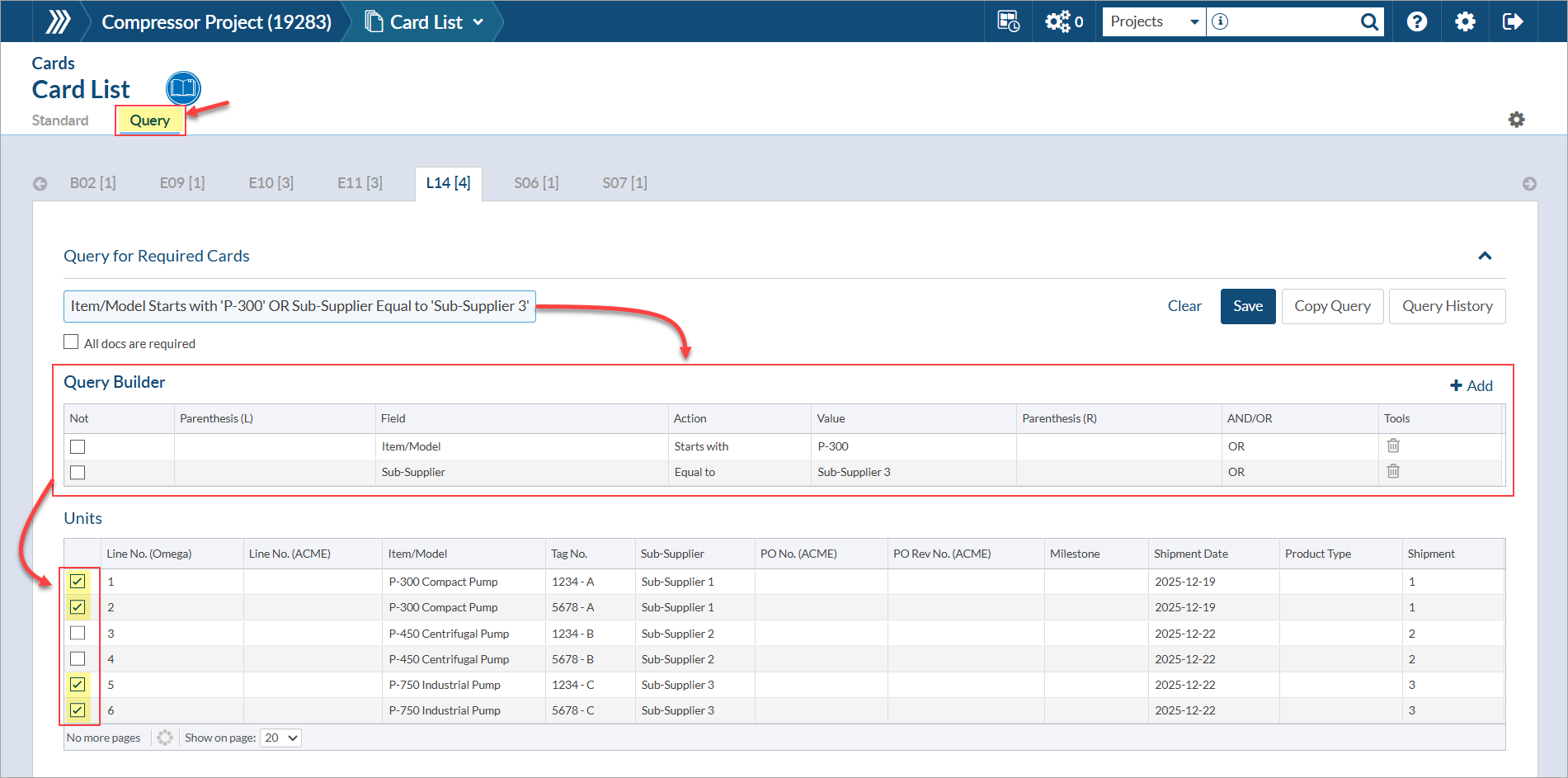
For large projects and projects where change orders are frequent, the query approach will be very helpful because any new line items and their corresponding documents will be automatically set as required or not based on your previously created conditions. In a manual approach, you must remember to select these documents after updating the order information.
*Important:
- The required/not required query does NOT edit the equipment assigned to each card. The SOLE FUNCTION of the QUERY tab (in the card list) is to set required/not required status.
- If a card includes ANY unit which satisfies the query, the card is marked as required.
- If changing the query will result in merge sets being sent to obsolete (which requires manual intervention to restore if done unintentionally), there is a warning to inform you of this and prevent accidental changes.
- If instead you are looking to manually edit the equipment assigned to a card, follow the instructions here: Link to Equipment.
For more examples and details about marking cards and running queries have a look at our video: Trimming Auto-Created Registers.