When processing files returned from the customer, DocBoss expects that the page count has NOT changed. DocBoss knows:
- Total pages sent (expected pages for return) - Example: 2
- Total pages of the actual document - Example: 3
- Total cover pages added on submittal - Example: 1
If the number of pages RETURNED doesn't match the number of pages SENT, there are 4 possible situations:
- The number of cover pages has changed (added/removed)
- The customer has added comment pages
- The customer has removed pages from the actual document (bad)
- The customer has returned ONLY the cover page.
DocBoss will show you that the number of total pages in the file does NOT MATCH. At that point you must tell DocBoss WHY.
And - its important.
DocBoss splits up your returned document based on these numbers. It saves the original, but it carves off cover pages, comment pages, and updates/replaces the source document if you force it.
Note that a second error will pop up if you tell DocBoss the source document has changed. DocBoss will offer to use the original SENT document (i.e. if customer has stripped off some pages from the actual document, you don't want the system to use that in your final databook).
If returning a document to a card which is not expecting a return (i.e., the card is auto-completed and is status "Z"), DocBoss will still record the page count at submittal and expect the same number of pages to be returned in the case that a return is received.
An example:
If, during the revision/approval of the document, the customer adds page e.g. they add an extra front page with a stamp (instead of adding the stamp directly on the original cover page), DocBoss will display page count errors and expect some form of resolution.
In this case, the original document had 1 page, and 1 cover page was added on submittal, making a total of 2 outgoing pages.
On return, there are 3 total pages:
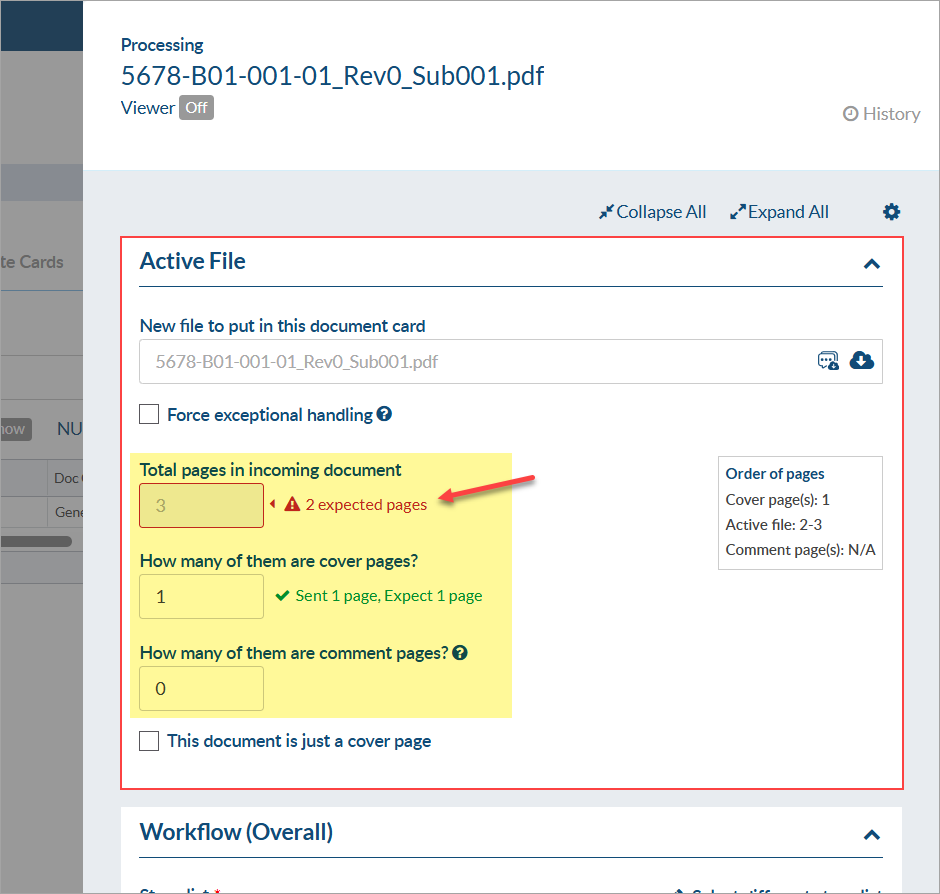
It’s very important to legitimately explain changes to DocBoss. In this case, it was due to an extra cover page. The user must increase the cover page count to clear the errors.
Can I change page counts after assignment?
Using the previous example, is it possible to change the settings once the assignment has been completed? Because we split the file and store the data only during the assignment process, the answer is no. Once the document is saved and the incoming process is completed, the number of pages cannot be changed. The only option is to upload again the file.
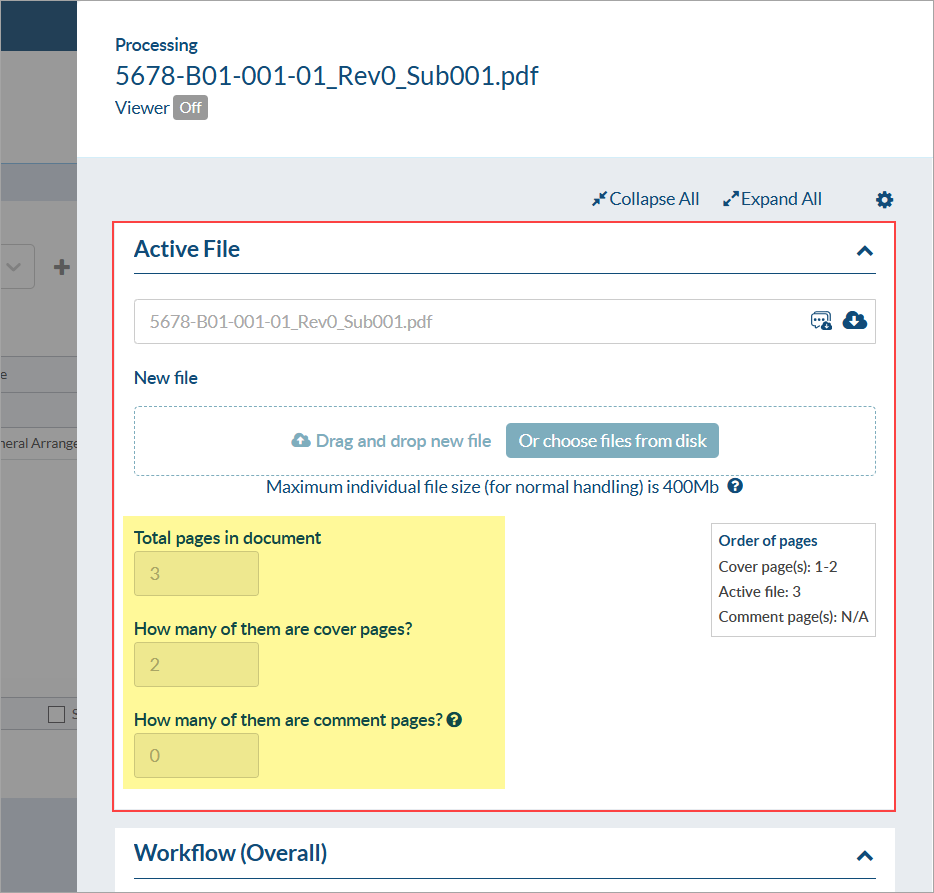
Steps to re-upload the document if you want to change page counts:
First - you must download a copy of the file.
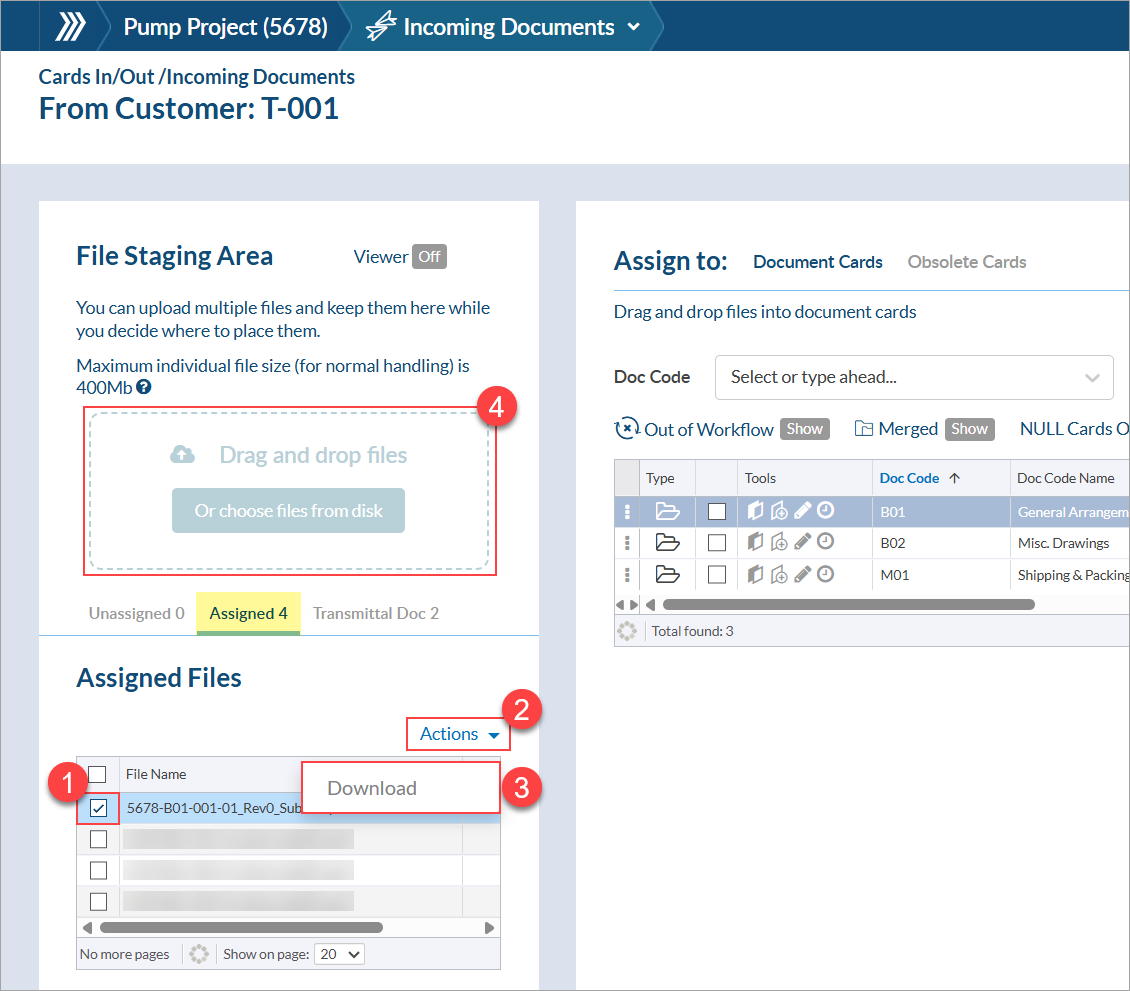
If you know which submittal the file was originally uploaded in, you can go into the "Assigned" tab and download the document (by selecting it from the grid, expanding the "Actions" drop-down, and clicking "Download"). Once downloaded, you can re-upload the file into the "drag and drop" area and adjust the page counts in the processing form before saving.
If you cannot remember which submittal the file was originally uploaded in, you can open the card history from the card list (clock icon under "Tools") and check the "In Submittal Number" column for the most recent line of history.
Alternatively, you can find the card in the card list and download the file from either (A) the "Document" column, or (B) by clicking the pencil icon under "Tools" and downloading from the "Active File" section. Once downloaded, you can re-upload the file as a new incoming submittal, OR you can open the original incoming submittal and re-upload the file into the "drag and drop" area. Then, adjust the page counts in the processing form before saving.

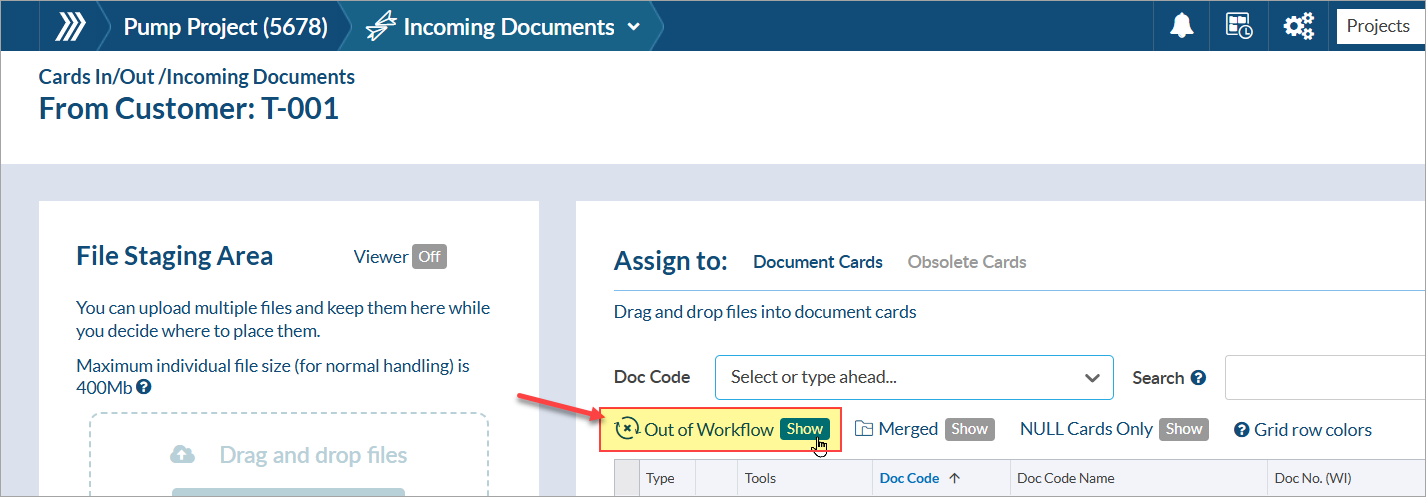
Note: The card will be hidden from the grid when you are looking to re-upload the file, as it is already be considered processed by the system. To see the card in the grid, make sure to enable the "Out of Workflow" cards by clicking the "Show" button.
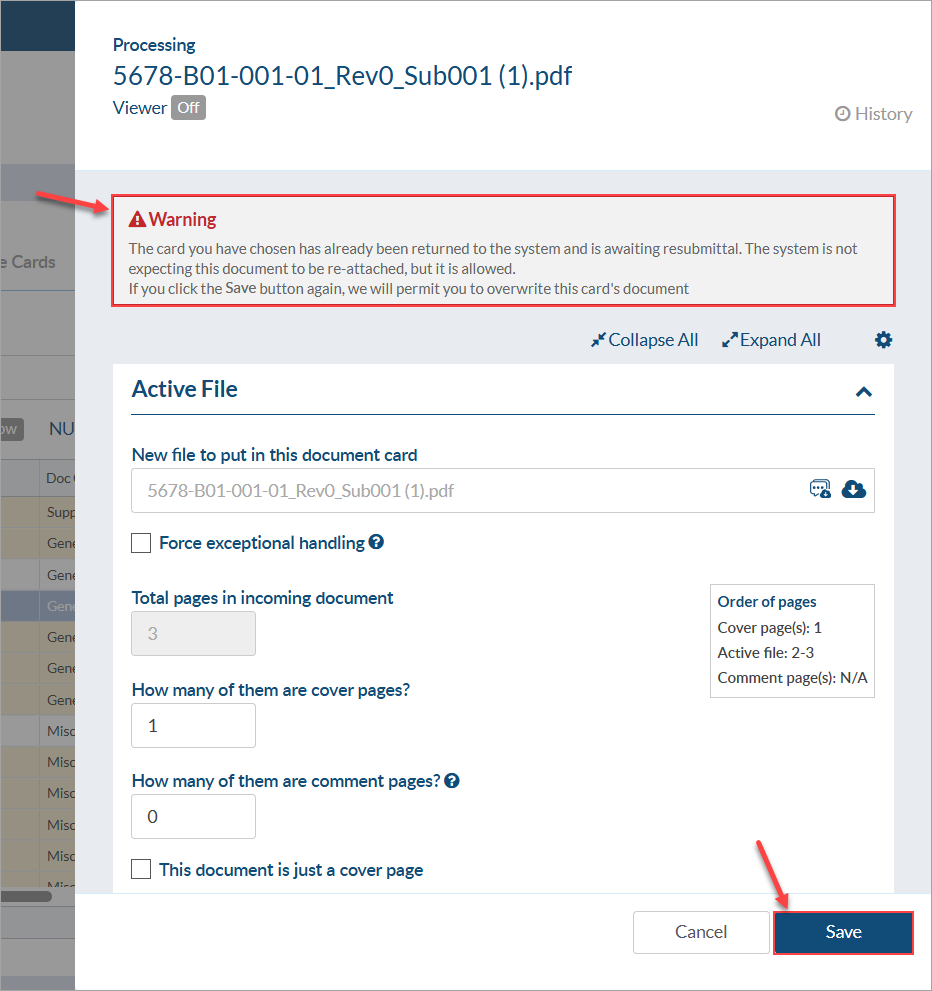
Once the page counts have been adjusted and you click "Save," a warning message will appear to notify you that this card already has a file and that if you click “Save” again, the new file will overwrite the previous document (which is the desired outcome in this case).
How page count mistakes may impact compilations
Example 1:
Lets assume the customer wants you to remove all document specific cover pages when you prepare the compilation. This can be done automatically in DocBoss - but if the counts are incorrect, it may produce some strange results.
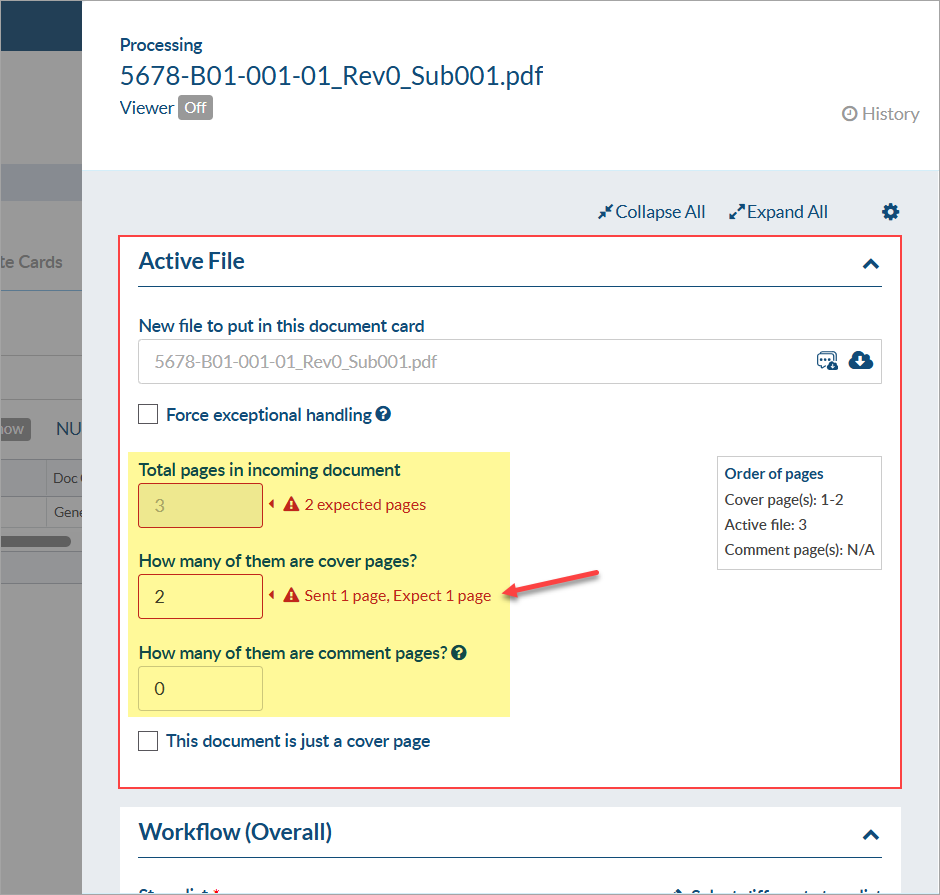
If, using the previous example, you tell the system there is 1 cover page and 0 comment sheets, it MUST mean that the document is now 2 pages, not the original 1. DocBoss has stripped the NEW cover page added by the customer (just the stamp) as the SINGLE cover page (1 page), and the remaining 2 pages (the original cover page plus the 1 page document) has been set in the system as the NEW original document. NOTE - you WILL see a warning telling you that the new document has a different page count that then original outgoing document. If you ignore it - this is accepted by the system.
When building the compilation, system will take the "new" original document (2 pages), so when you look in the compilation, you will strangely see the original cover page (which is now actually part of the ORIGINAL document). It can be confusing, because you have told DocBoss to remove "cover pages".

Follow this example where the user has set the number of the cover pages to 0. In this situation, DocBoss assumes the original document is now 3 pages, and the customer removed the original cover page. So the 3 page document will be set as the new ORIGINAL document. See the error message below:
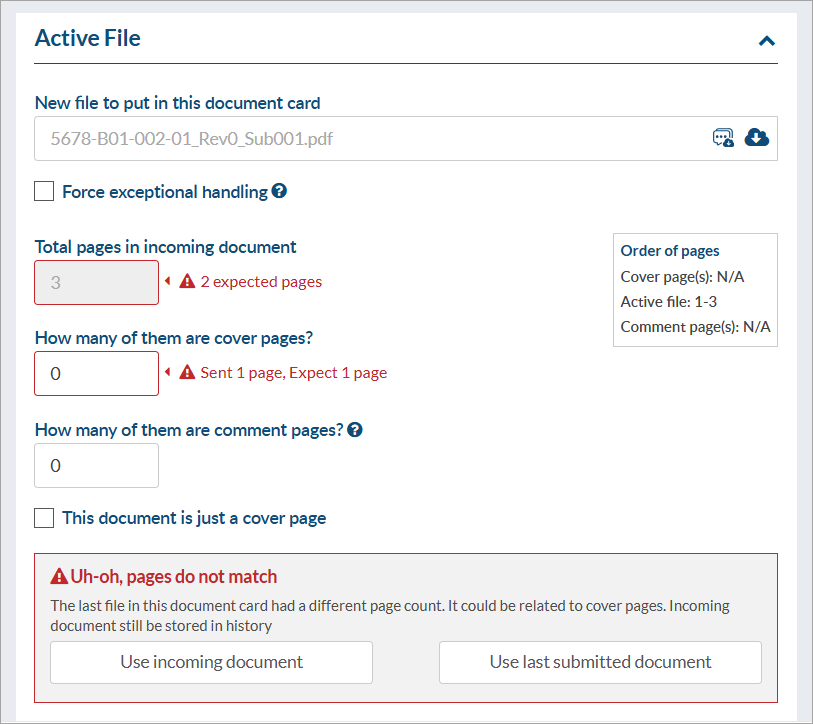
Note that this is allowed, but a warning message will appear on screen to remind you to have another look to the number of the cover pages or if you would like to select the last transmitted document instead of incoming document (not recommended for this situation).
Example 2:
Lets assume, as in the above example, that we told system there were no cover pages for a document (when in fact there were 2).
Also - assume the compilations settings are to “Ensure every doc has cover sheet”:

System will consider that this document has no cover pages, and therefore will add a new one!
Now the document will have the 2 cover pages from the original mistake. DocBoss thinks the 5 page document is the ORIGINAL document, and it will ADD A NEW COVER PAGE!
Some quick troubleshooting can come up with a workaround if you are at the end of a project and just want to issue the book without re-uploading and setting the pages correctly...
First: Change the cover page settings of the card to “No stamp and no cover page”. This tells DocBoss that we don't want to add a new cover page to this card on submittal.
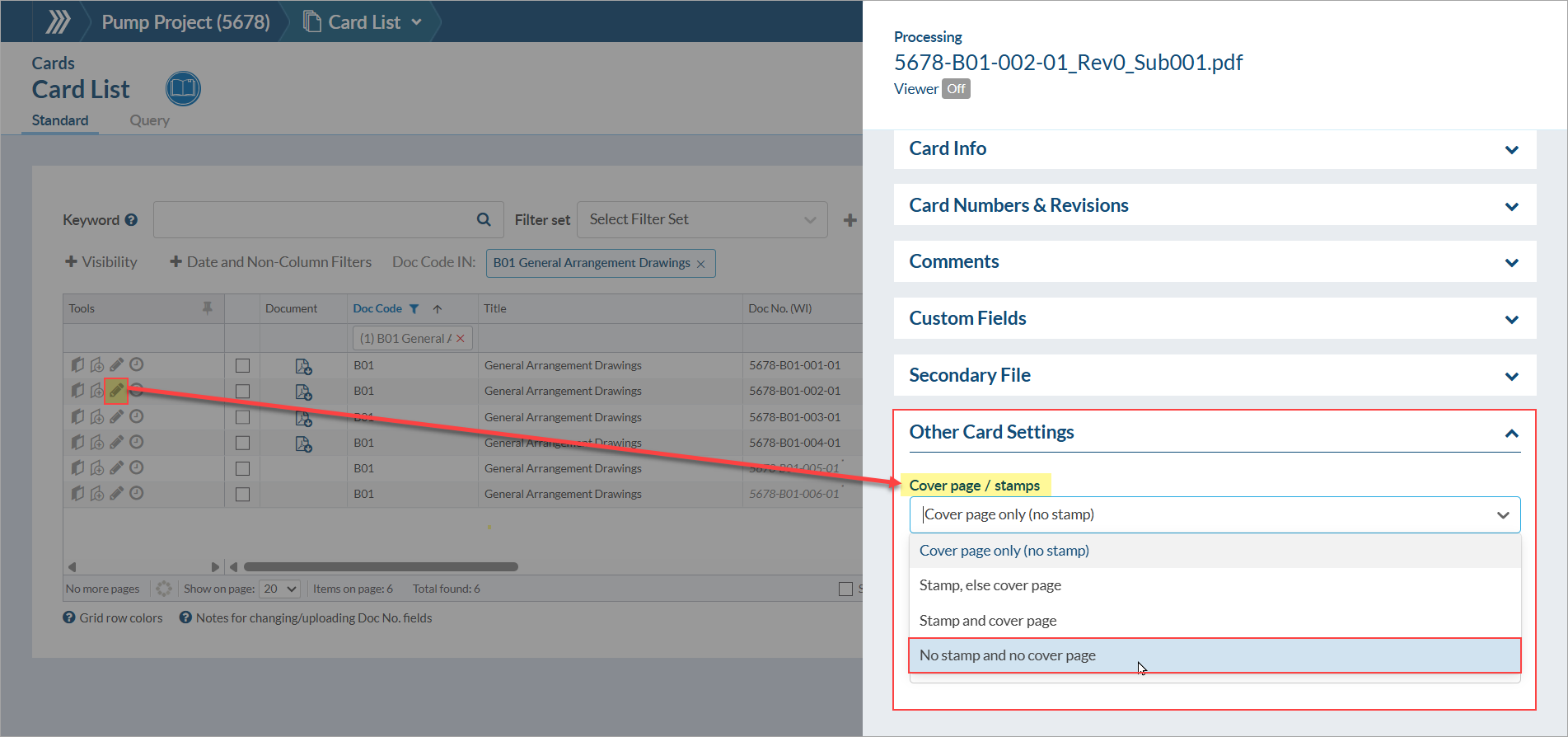
If you ALSO enable “Respect cover sheet suppression for each card”, this preference for managing cover pages on submittals will also be respected during the generation of the compilation. So - no extra cover page will be added.

NOTE: If ALL cards were incorrectly assigned, you could just turn off cover pages for the entire book. But - if some are correct, and some are incorrect, this allows you to manage both.
Just an exercise in working with page counts! Feel free to contact support@docboss.com at anytime if you find yourself having trouble with the numbering of the document pages and cover pages.